Word C1L5 Make a Fair Plan
- Download the logo below on your Ipad and save it in your photos.

- Start a new blank word document.
- Save the file as WC1L5Yourname in your folder in OneDrive
- Double click in the header of the word document
- Insert the logo you downloaded
- Change the logo to be 0.75 inches tall
- Change the wrapping to be tight
- Put the logo on the left corner about 1inch from the right and 0.5 inches from the top of the page.
- Click on the left side of the header
- Change to the Heading 1 style
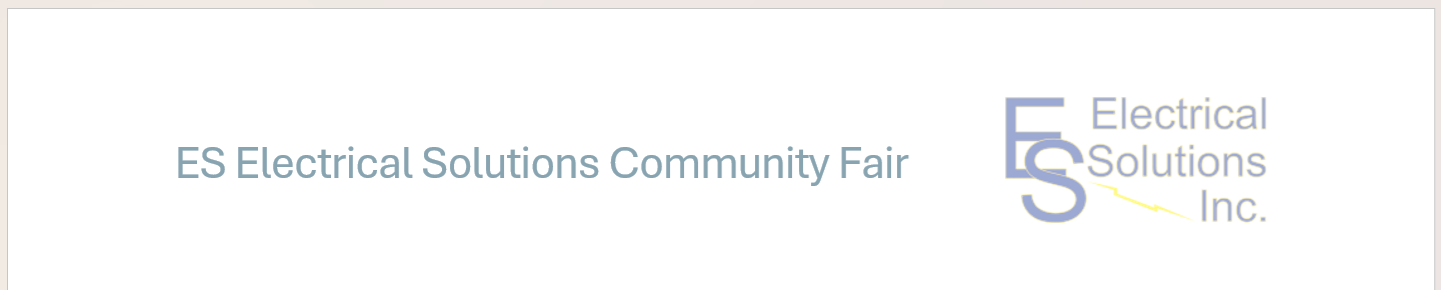
- Type ES Electrical Solutions Community Fair
- Hit enter once after the above line to make the header a little bigger.
- Double click out of the header to edit the document
- Your header should look like the following:
- Select the heading 1 style
- Type Volunteer Roster and hit enter
- Select the no spacing style
- Turn on bold text
- Set tabs at 1.75, 3.5, and 5.25 inches. Turn on the rulers if they are not on, click view -> Select turn on rulers -> click on the bottom half of the ruler at 1.75, 3.5, and 5.25 inches
- Type the following infomation as shown below using tabs to line everything up, turn off Bold after the first line

- Change back to the Heading 1 Style
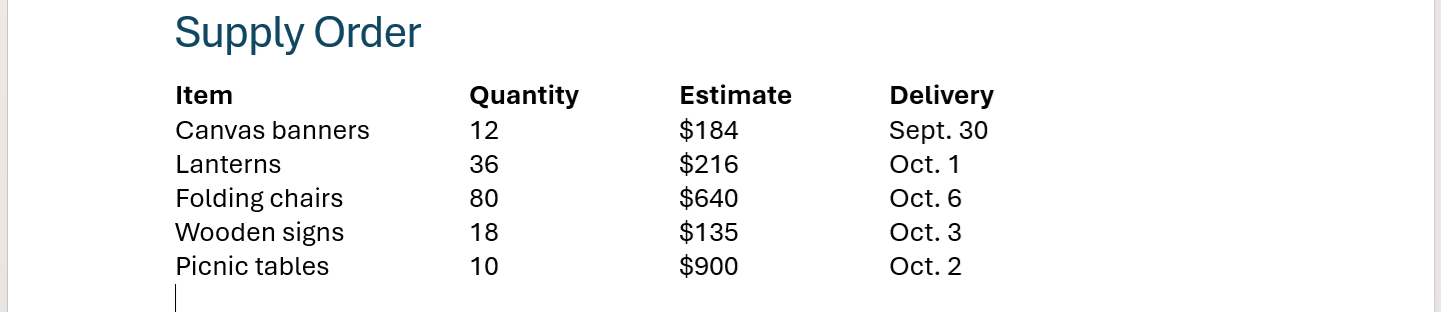
- Type Supply Order and hit enter
- Change to no spacing style
- Set tabs at 1.75, 3, and 4.25 inches
- Type the following information as shown below using tabs and bold for only the first line
- Change back to the Heading 1 Style
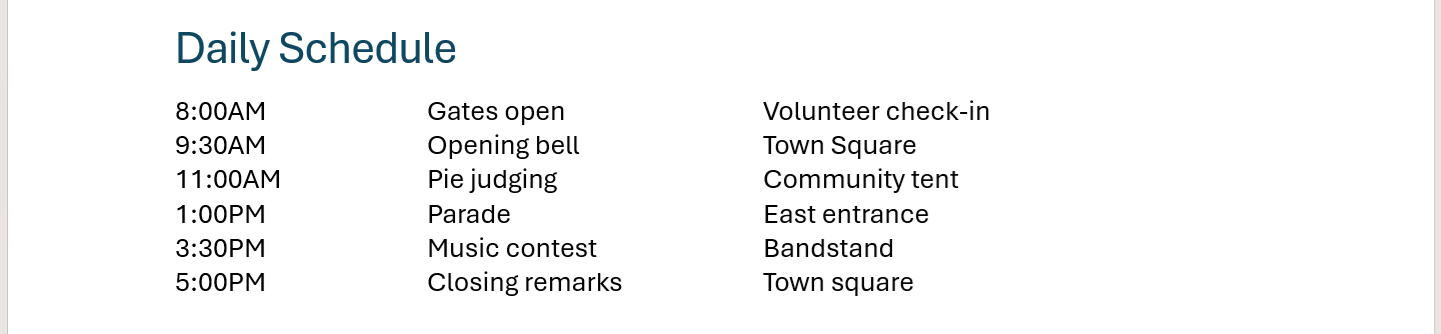
- Type Daily Schedule and hit enter
- Change to no spacing style
- Set tabs at 1.5, and 3.5 inches
- Type the following information as shown below
- Change back to the Heading 1 Style
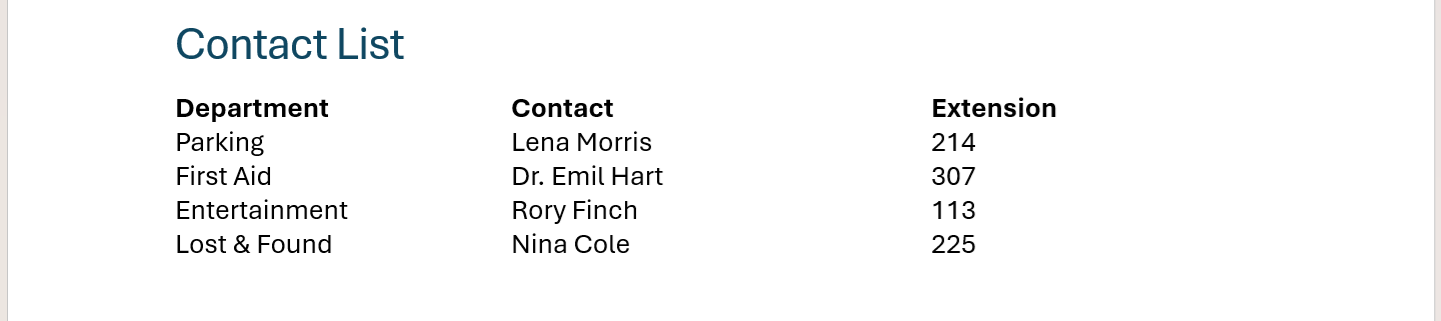
- Type Contact List and hit enter
- Change to no spacing style
- Set tabs at 2, and 4.5 inches
- Type the following information as shown below with bold only on the first line
- Turn in the Word document
COPYRIGHT © 2023-2026 LEARNSOFTWARETODAY.COM

