Windows C1L1 Where am I storing stuff
- Find the little gray cloud on the bottom right corner of the menu bar
- Click on it and go ahead and sign in. If given the option, say yes to signing in to all apps
- Open File Explorer
- Click on the OneDrive icon in the menu on the left, which most likely has your name in it
- Create a new folder called Computer Apps Right click out in the empty area -> Click New -> Click Folder -> Type "Computer Apps"
- Double-click on Computer Apps to open the folder
- Open the paint program Click on search at the bottom of the screen and type Paint -> Click on Paint App
- Draw me a quick and silly picture with paint (Don't spend more than 5 minutes on this)
- Save your creative genius in your new Computer Apps folder in Onedrive Click File -> Save As -> PNG picture -> Give the File name Paint1YourFirstName -> Click Save
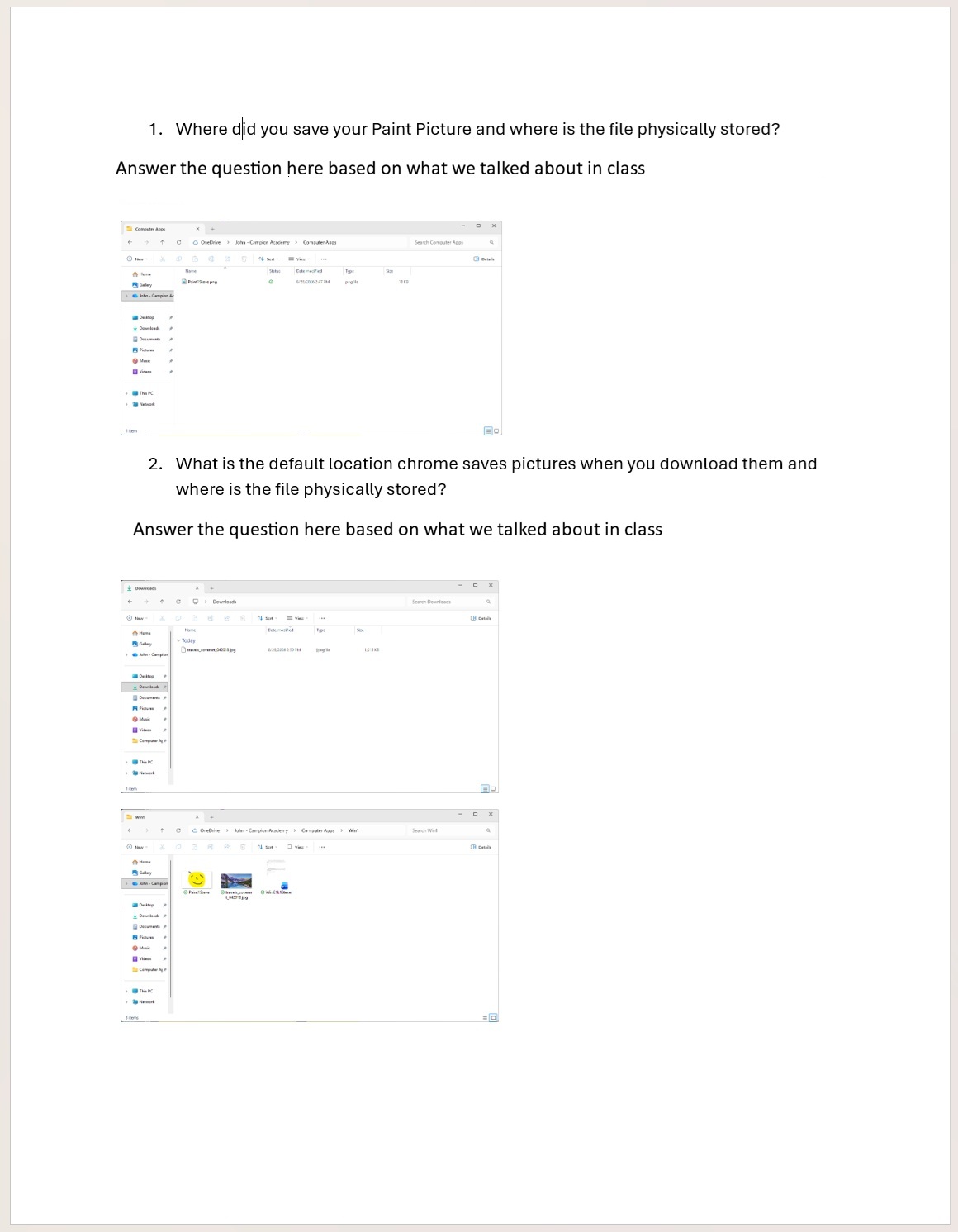
- Go back to File Explorer and navigate to your Computer Apps folder and find the Paint1YourName file
- Take a screenshot by pressing Alt-PrtScrn Hold down the Alt key and press the PrtScrn button
- Open Microsoft Word
- Start a new blank document
- Save it in your Computer Apps Folder in OneDrive with the filename WinC1L1YourFirstName
- In Word type the following(use the default text color): 1. Where did you save your Paint Picture and where is the file physically stored? Hit enter twice to exit the list and answer the question.
- After you type your answer, hit enter and then use Ctrl-V to paste your screenshot into your Word document.
- Resize the picture so that it is smallish about 1.5 times the height of the top margin.
- Hit enter so that you on the line below the picture.
- Open Chrome and search for mountain pictures.
- Click on images in the menu under the search bar
- Click on tools → Size → large
- Click once on the picture you like so that you see a preview on the right.
- Right-click on the preview
- Click save picture as. In the window that pops up, make sure that the picture is the Save as Type JPG or PNG, if it is not, then choose a different picture until you find one that is one of those two types. Other types are copyrighted and may not copy or save well.
- Notice where you are saving it at the top of the window, which should be downloads
- Click Save
- Go back to File Explorer and find your downloaded picture in the downloads folder
- Take another screenshot by pressing Alt-PrtScrn
- Go back to your Word file and type 2. What is the default location chrome saves pictures when you download them and where is the file physically stored? Hit enter twice
- Answer the question
- Paste your screenshot in below your answer using Ctrl-V
- Now go back to File Explorer.
- Cut your downloaded picture from downloads
- Paste it in your computer apps folder in Onedrive
- Close Word
- To be extra organized go to File Explorer again and go to your computer apps folder
- Create a new folder in it called Win1
- Move both your Paint picture and the picture you downloaded into the Win1 folder
- Move your word document you just created into the Win1 folder
- Go into the Win1 folder
- Take a screenshot of File Explorer with the Win1 folder open
- Open word again
- Paste the screenshot at the bottom of the page
- Make sure everything fits on one page
- If the directions were followed well your document should look similar to the one below
- Save your Word document
- Turn in your Word Document
COPYRIGHT © 2023-2026 LEARNSOFTWARETODAY.COM

